
Overlay audio at specific timeline
Add audio overlays to videos at specific timestamps with fade-in and fade-out effects.
Overlaying audio at chosen points in your video allows you to add layers of sound—such as music, sound effects, or narration—at the exact times where they are most impactful. With this FastPix feature, you can fine-tune the placement and transition of audio, creating an engaging viewing experience by enhancing specific moments with additional audio elements.
Steps to overlay audio at specific timestamps
Using FastPix’s Create media from URL endpoint, you can overlay an audio track onto your video with customized start and end times, as well as smooth fade-in and fade-out effects. Here’s how to set up the overlay.
NOTE:
For server-side or device uploads that send the media file directly (rather than a public URL), see the Upload media from device (direct upload) API reference.
- Prepare your audio file for overlay before adding an overlay, ensure the audio file matches the required quality and length for the segment you’re enhancing. Save it to an accessible URL to use in the request.
- To add an audio overlay to your video, configure the JSON request using the following structure in the FastPix API.
Specify "type": "audio" with "imposeTracks" for overlay audio, and add timing and transition details.
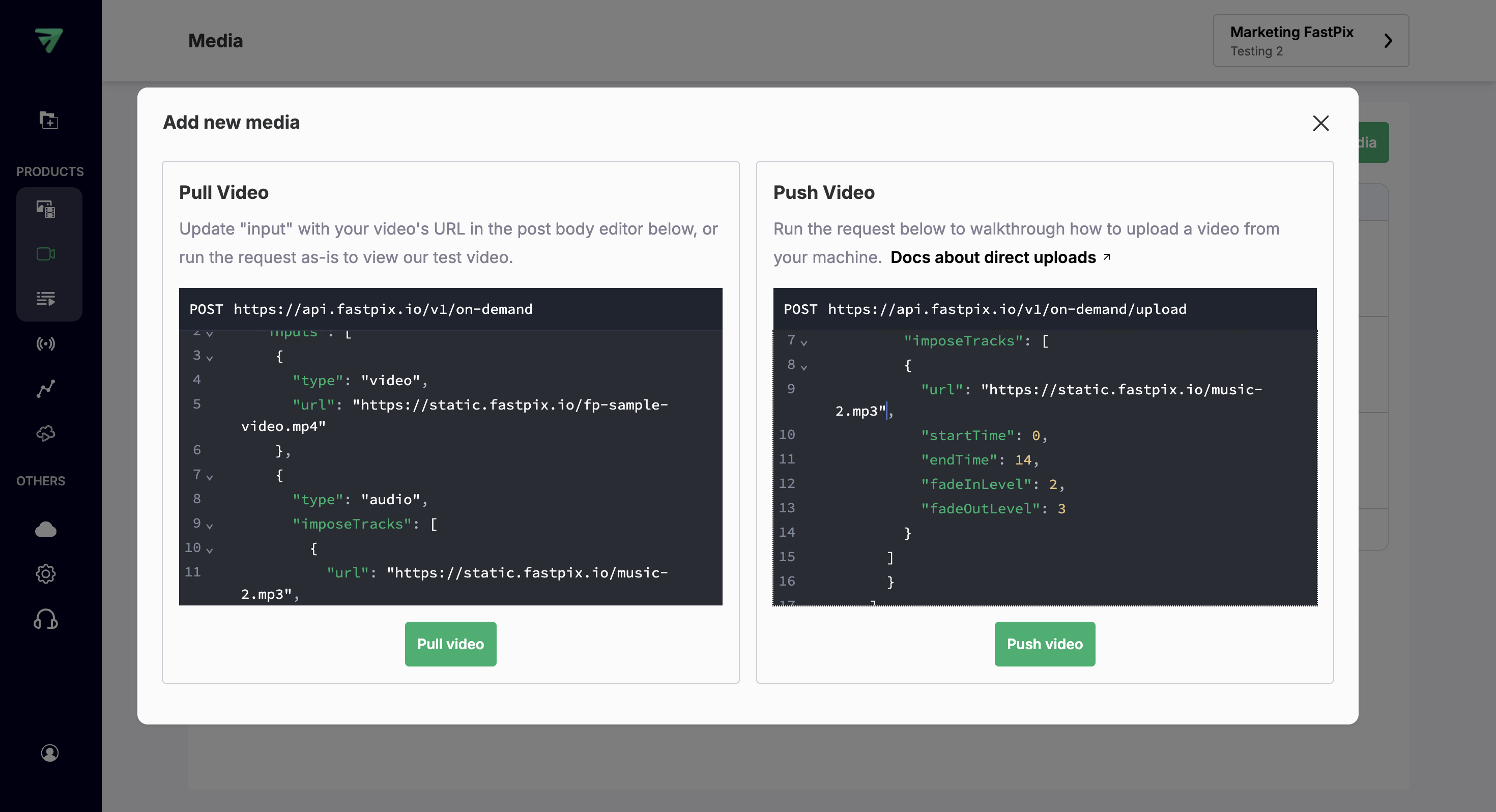
The parameters you’ll need are:
- url: URL of the audio file to be overlaid.
- startTime: Timestamp (in seconds) where the overlay audio must begin.
- endTime: Timestamp (in seconds) where the overlay audio must end.
- fadeInLevel: Duration (in seconds) for the audio to reach full volume.
- fadeOutLevel: Duration (in seconds) for the audio to fade out to zero volume.
Below is an example of a JSON request for overlaying audio onto a video with specific start and end times, and customized fade-in and fade-out settings:
Request Body for creating media by URL
{
  "inputs": [
    {
      "type": "video",
      "url": "https://static.fastpix.io/fp-sample-video.mp4"
    },
    {
      "type": "audio",
      "imposeTracks": [
        {
          "url": "https://static.fastpix.io/music-2.mp3",
          "startTime": 0,
          "endTime": 14,
          "fadeInLevel": 2,
          "fadeOutLevel": 3
        }
      ]
    }
  ],
"accessPolicy": "public"
}
In this example, the overlay audio starts immediately (at 0 seconds) and ends at the 14-second mark. The fade-in effect takes 2 seconds, while the fade-out occurs over 3 seconds, creating a smooth audio transition.
Request body for replacing track by creating media with direct upload
{
  "corsOrigin": "*",
  "pushMediaSettings": {
    "inputs": [
      {
        "type":"audio",
        "imposeTracks": [
        {
          "url": "https://static.fastpix.io/music-2.mp3",
          "startTime": 0,
          "endTime": 14,
          "fadeInLevel": 2,
          "fadeOutLevel": 3
        }
      ]
      }
    ],
    "accessPolicy": "public"
  }
}
Request body for audio overlay on existing media
{
  "inputs": [
    {
      "type": "video",
      "url": "fp_mediaId://{Media_ID}"
    },
    {
      "type": "audio",
      "imposeTracks": [
        {
          "url": "https://static.fastpix.io/music-2.mp3",
          "startTime": 0,
          "endTime": 14,
          "fadeInLevel": 2,
          "fadeOutLevel": 3
        }
      ]
    }
  ],
 "accessPolicy": "public"
}
Replace the {Media_ID} value in the URL with the media ID of your uploaded video.
- After preparing your JSON request, submit it to the FastPix API endpoint. The API processes the request and applies the audio overlay according to the parameters you specify.
Webhook event for status
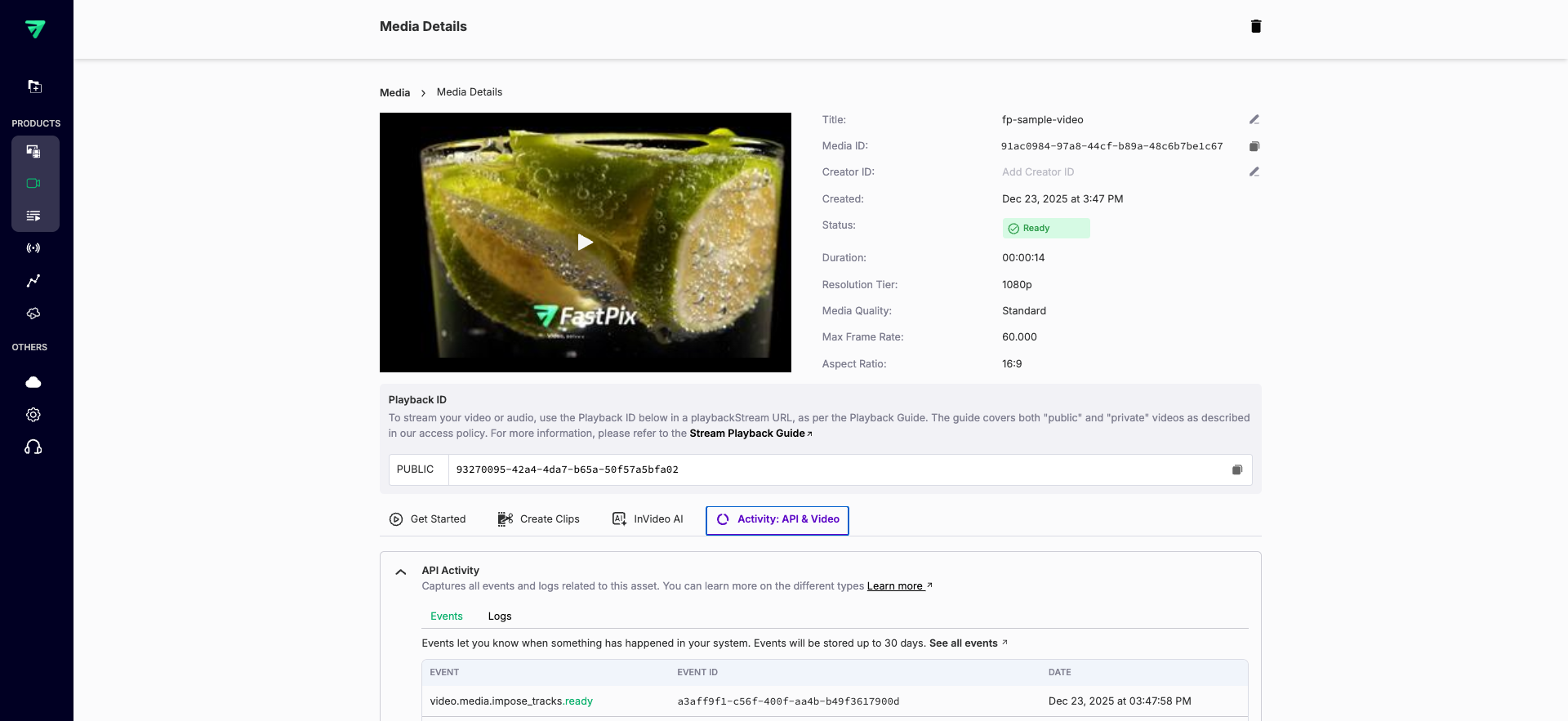
Upon successfully imposing audio to the media, FastPix triggers the corresponding webhook event:
- video.media.impose_tracks.ready: Triggered when the audio tracks have been imposed successfully.
Example use case
Suppose you have a tutorial video with a 20-second segment that explains a key concept. You decide to overlay a voice narration from 2 to 18 seconds, with a 1-second fade-in and a 1.5-second fade-out, to guide viewers through the information. By using this API feature, you seamlessly integrate the narration, enhancing viewer comprehension and engagement.
Updated 4 months ago