
Live Stream Health Stats
Identify and resolve live stream ingest issues quickly using FastPix's real-time tools. Diagnose buffering, stuttering, audio desync, and disconnects.
FastPix gives you real-time visibility into your livestream’s health so you can quickly diagnose ingest problems and fix issues such as buffering, stuttering, audio delays, or unexpected disconnects. This guide explains how to view live-stream health stats and use them to identify and resolve broadcast issues.
This guide includes:
- How to inspect Live Stream Input Health
- How to understand and use Live Stream Stats
- How to troubleshoot unstable bitrate, packet loss, variable FPS, and drift
- A practical checklist for operators
Start with Live Stream Input Health
- Sign in to your FastPix dashboard
- Navigate to Live, Select the live stream or stream key you want to inspect
- Go to Activity: API & Video > Viewer Metrics
The Input Health dashboard provides real-time ingest metrics, including:
- Frames per second (FPS)
- Audio bitrate
- Video bitrate
- Packet loss
- Recent ingest history
Use this view to quickly detect encoder or network issues.
What a Healthy Live Stream Looks Like
A stable ingest session typically has:
- Consistent FPS - prevents motion jitter
- Non-zero, stable audio bitrate - avoids audio dropouts
- Low video bitrate variance - sudden spikes indicate congestion or overload
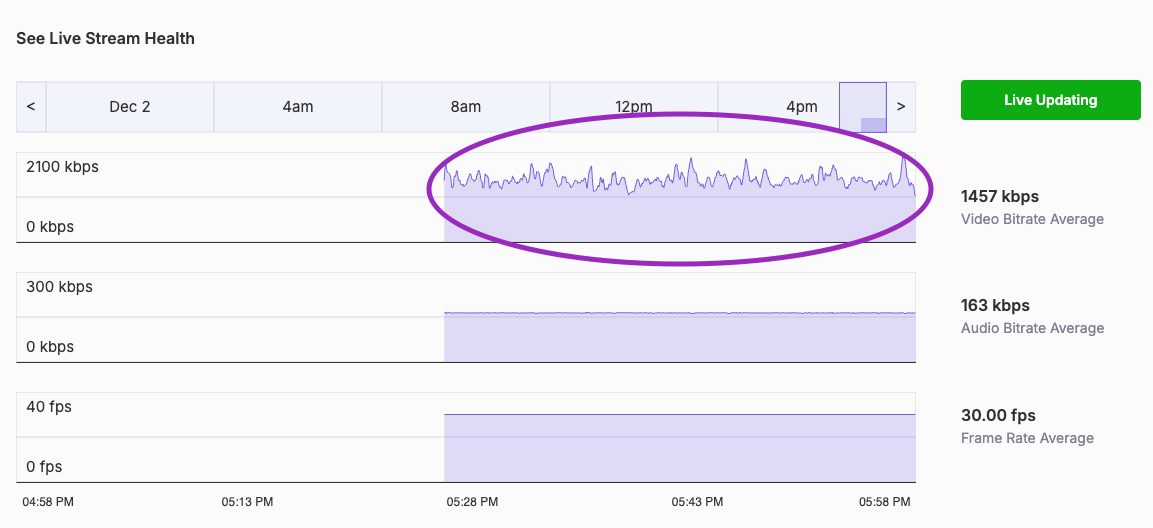
If all three are stable, the stream is considered healthy.
Debug live stream issues
Common Issues and How to Fix Them
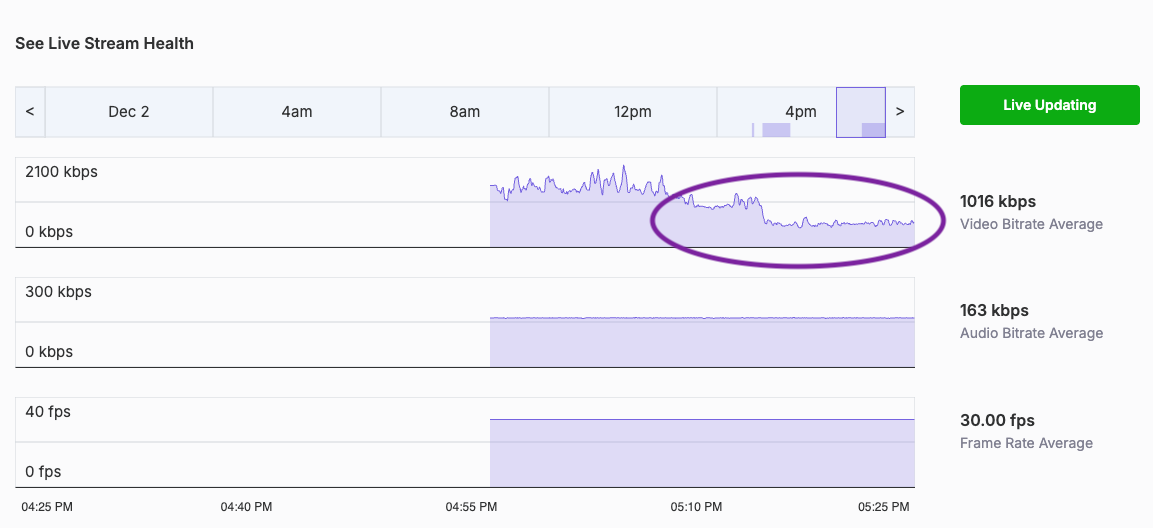
Video Bitrate Variance
Symptoms: Quality swings, buffering
Causes: Network congestion, CPU overload, unstable presets
Fixes:
- Switch to CBR (constant bitrate)
- Reduce target bitrate
- Use hardware encoding where possible
- Ensure upload bandwidth ≥ 2× encoder bitrate
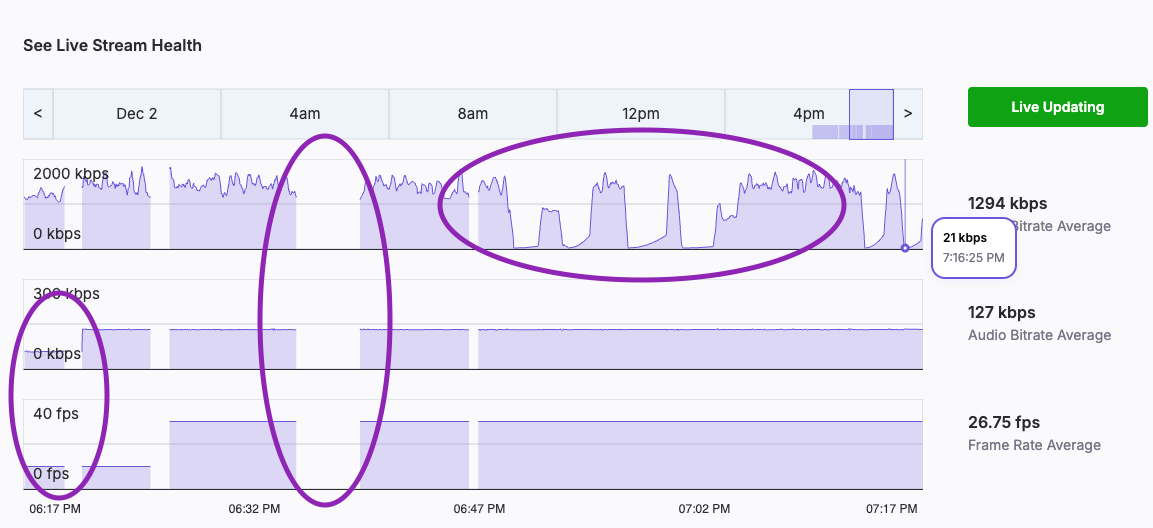
Packet Loss or Disconnects
Symptoms: Stream resets, frozen frames, latency spikes
Causes: Wi-Fi instability, poor routing, ISP issues
Fixes:
- Run jitter and packet-loss tests (iPerf)
- Reduce bitrate during congestion
- Consider SRT for more resilient transport
Audio Bitrate Drops or Desync
Symptoms: Choppy audio or audio/video drift
Causes: Silence suppression, codec misconfiguration
Fixes:
- Use a constant audio bitrate (96–128 kbps)
- Check encoder CPU usage and logs
Variable or Spiky FPS
Symptoms: Jerky or uneven motion
Causes: Encoder overload, camera FPS inconsistencies
Fixes:
- Lock encoder and camera FPS (30 fps)
- Reduce resolution to lessen CPU load
- Use faster encoder presets
Troubleshooting Checklist
Use this quick list during live events:
- Check Input Health → FPS, audio bitrate, video bitrate
- Check drift and deviation in Live Stream Stats
- Switch to CBR to stabilize bitrate
- Lower video bitrate as a diagnostic step
- Use a higher bandwith of internet connection
- Check encoder logs for overload or throttling
- Re-test with a short stream after each change
More information
For help with FastPix streaming:
- Read the complete FastPix documentation guides
- See the Live Streaming API reference
- Join the FastPix community discussions
- Contact FastPix support
Updated 5 months ago