
Add metadata to livestream
Add metadata to live streams to enable better organization, tracking, and automated workflows.
FastPix lets you attach metadata to any livestream at the time of creation. This metadata can be used to label the stream, organize dashboards, or trigger automations in your systems.
What is livestream metadata?
Metadata for livestreams is a simple JSON object attached during stream creation. It stays with the stream and any recorded archive, making it useful for classification and integration.
Example:
"metadata": {
  "event": "product_launch",
  "region": "EU"
}
Why add metadata to livestreams?
- Track livestreams by region, event, or host
- Integrate with your internal scheduling or analytics tools
- Trigger overlays, banners, or AI functions
- Improve archival sorting and discoverability
- Store ownership or moderation flags
Schema rules
Similar rules as VOD:
- Flat JSON only (no nested objects or arrays)
- Keys: lowercase strings recommended
- Values: strings or numbers
- Max: 10 key-value pairs per stream
How to add metadata
Before you can add metadata to a livestream, you must first create a stream with the FastPix API. To see the full definition of this endpoint, request parameters, and example responses, refer to the Create new stream API.
Using API (during stream creation)
You can update the livestream’s metadata using the Update live stream endpoint. For complete details on all supported fields and response formats, refer to the Update live stream API.
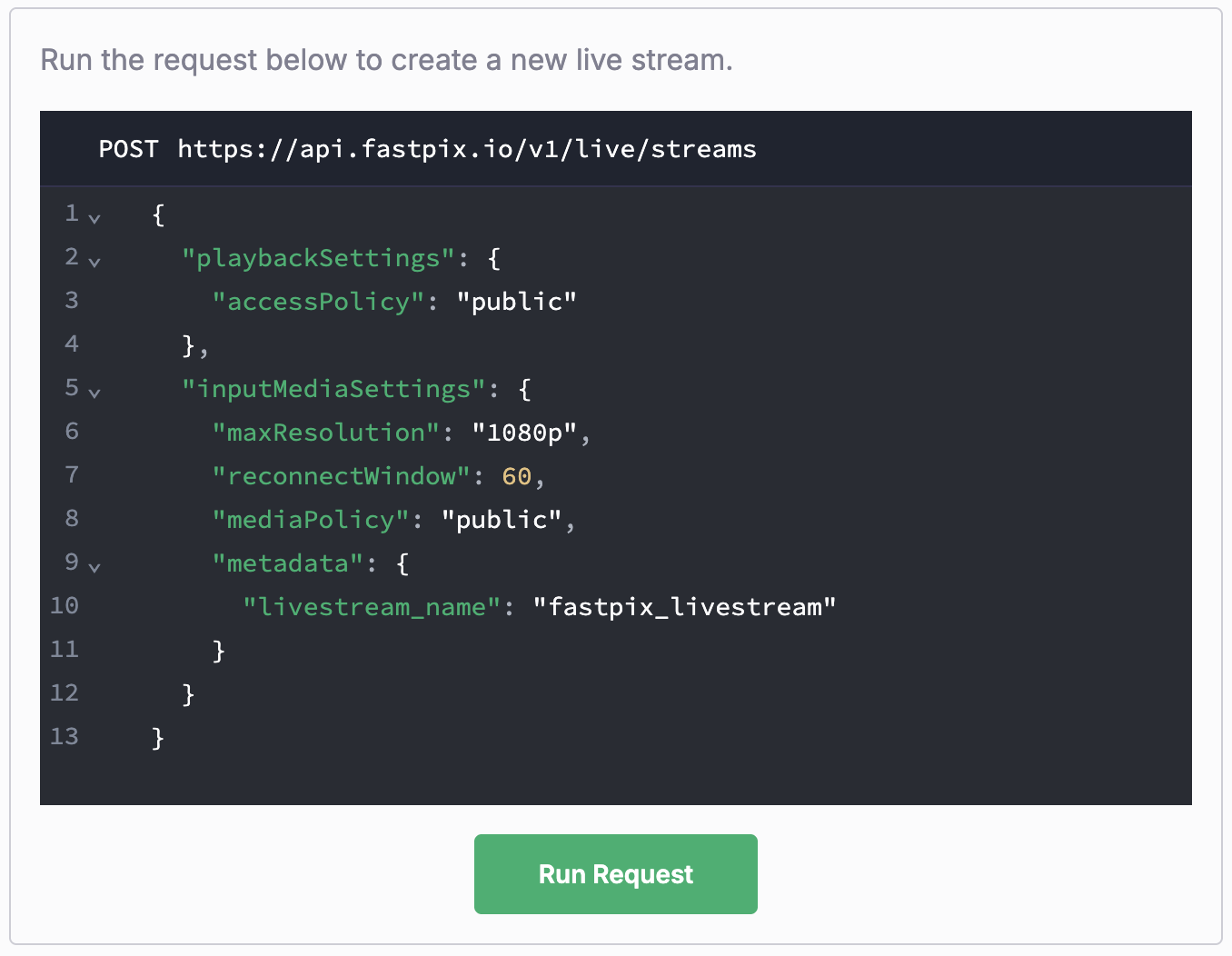
Include your metadata inside the inputMediaSettings object when creating a new livestream.
{
  "playbackSettings": {
    "accessPolicy": "public"
  },
  "inputMediaSettings": {
    "maxResolution": "1080p",
    "reconnectWindow": 60,
    "mediaPolicy": "public",
    "metadata": {
      "livestream_name": "fastpix_livestream"
    }
  }
}
Add metadata using the dashboard
You can add metadata to a livestream directly from the FastPix Dashboard during or after stream creation. This is useful for tagging streams with names, IDs, or contextual information that downstream workflows and analytics can use.
-
Open the FastPix dashboard.
-
Go to Products > Live Streams.
-
Click Create live stream.
In the creation form:
-
Enter a Stream name (optional but recommended).
-
Configure stream settings such as resolution, reconnect window, and access policy.
-
Click Run Request.
At this point, FastPix generates your stream details, including the stream key and playback IDs.
"metadata": {
  "livestream_name": "fastpix_livestream"
} 
Update your livestream metadata
Use this API to update metadata:
https://api.fastpix.io/v1/live/streams/{streamId}Example:
{
  "metadata": {
    "moderated": "true",
    "language": "fr"
  }
}
NOTE
- No partial updates: This is a replace-only operation. Fields not included in the request will be deleted.
- Schema rules apply: Keys must be strings; values must be strings or numbers. No nesting or arrays allowed.
- Max 10 pairs: If you send more than 10 fields, the extra ones will be silently dropped.
Best practices for livestream metadata
-
Name every stream using a unique slug or timestamp
-
Tag by region or use case (for example, "region": "NA", "use_case": "webinar")
-
Use metadata to power overlays or real-time workflows
-
Avoid updating post-creation unless necessary (replaces full object)
Example use cases
| Use Case | Metadata Fields |
|---|---|
| Event Series Tagging | "track": "demo_days", "host": "user_187" |
| Regional Targeting | "region": "US", "language": "en" |
| Workflow Trigger | "ad_ready": "true", "moderation_needed": "false" |
Updated 4 months ago