
Activate your FastPix account
Learn how to activate your FastPix account and authenticate with the API, obtain and manage access tokens, understand permissions, select workspaces, and handle admin-only access.
Get started with FastPix by creating an account and generating your API credentials for authentication.
Before you begin
To use the FastPix API, you need:
- A FastPix account with admin privileges
- Access to your email for account verification
If you don't have an account yet, sign up for FastPix.
Create your FastPix account
- Go to the FastPix signup page.
- Enter your email address and create a password.
- Verify your email by clicking the link sent to your inbox.
- Complete your profile setup.
Your account is now active and ready to use.
Generate API credentials
FastPix uses access tokens to authenticate your API requests. Each token consists of an Access Token ID (username) and a Secret Key (password).
Create an access token
- Sign in to your FastPix dashboard.
- Navigate to Settings > Access Tokens.
- Click Generate new token.
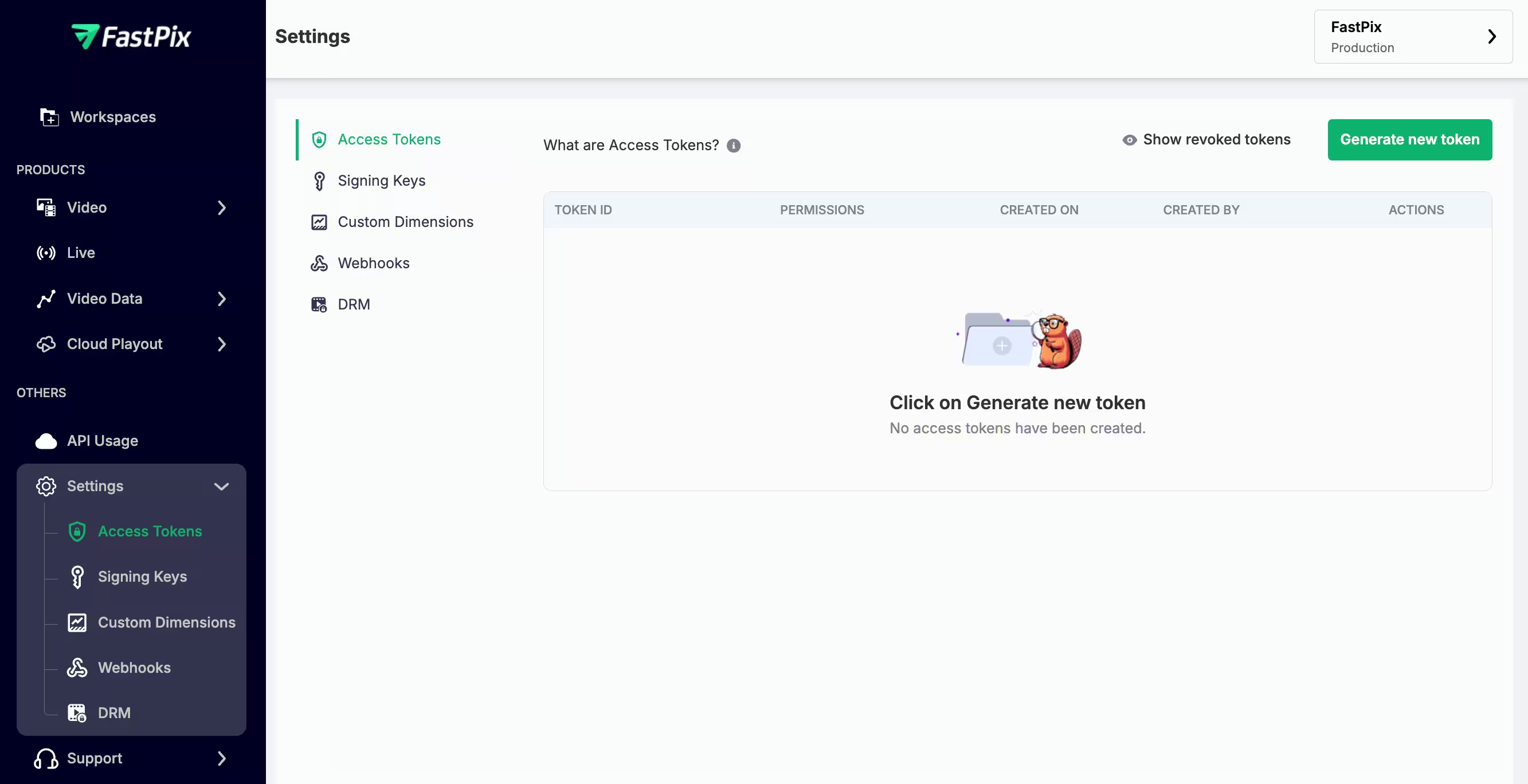
- In the dialog that appears:
- Enter a descriptive name for your token (for example, "Production API" or "Development Testing").
- Select the appropriate permissions for your use case. See Choose token permissions for guidance.
- Click Generate access token.

The dialog displays your new credentials:
- Access Token ID: Acts as your username
- Secret Key: Acts as your password
Save your credentials
Important: FastPix shows your Secret Key only once for security reasons. Copy it immediately and store it securely.
We recommend:
- Downloading the credentials as a
.envfile - Storing them in a secure password manager
- Never committing them to version control
If you lose your Secret Key, you must generate a new access token.
Choose token permissions
Select the permission level based on how you plan to use the token:
-
Read and write: Choose this option if you need to create, update, or delete resources (media files, live streams, or direct uploads). Use this for production applications that manage content.
-
Read only: Choose this option if you only need to retrieve data using
GETrequests. This is ideal for monitoring dashboards or analytics applications. -
Data read: Choose this option if you need access to analytics and performance metrics. This permission allows you to query video data, view playback statistics, and access monitoring information without modifying any resources.
-
System: Choose this option for administrative and system-level operations. This permission is required for managing webhooks, configuring account settings, and performing organization-wide configurations. Use this carefully as it grants elevated priveleges.

NOTE:
Always follow the principle of least privilege: grant only the permissions required for each token's specific purpose.
Authenticate API requests
FastPix uses HTTP Basic Authentication. Most HTTP libraries handle this automatically.
Authentication format
Combine your credentials in this format:
Username: {Access Token ID}
Password: {Secret Key}
Your HTTP client encodes these credentials and adds them to the Authorization header as:
Authorization: Basic base64(username:password)Example: Create a video using cURL
This example shows how to upload a video using your credentials:
curl -X POST "https://api.fastpix.io/v1/on-demand" \
  -u {ACCESS_TOKEN_ID}:{SECRET_KEY} \
  -H "Content-Type: application/json" \
  -d '{
    "inputs": [
      {
        "type": "video",
        "url": "https://static.fastpix.io/fp-sample-video.mp4"
      }
    ],
    "accessPolicy": "public"
  }'
Replace {ACCESS_TOKEN_ID} and {SECRET_KEY} with your actual credentials.
NOTE:
Most programming languages and frameworks have built-in support for Basic Authentication. Check your HTTP library documentation for specific implementation details.
Manage access tokens
View existing tokens
To see all access tokens in your organization:
- Go to Settings > Access Tokens in your dashboard.
- Review the list of active tokens, including their names, permissions, and creation dates.
Revoke a token
If a Secret Key is compromised or no longer needed:
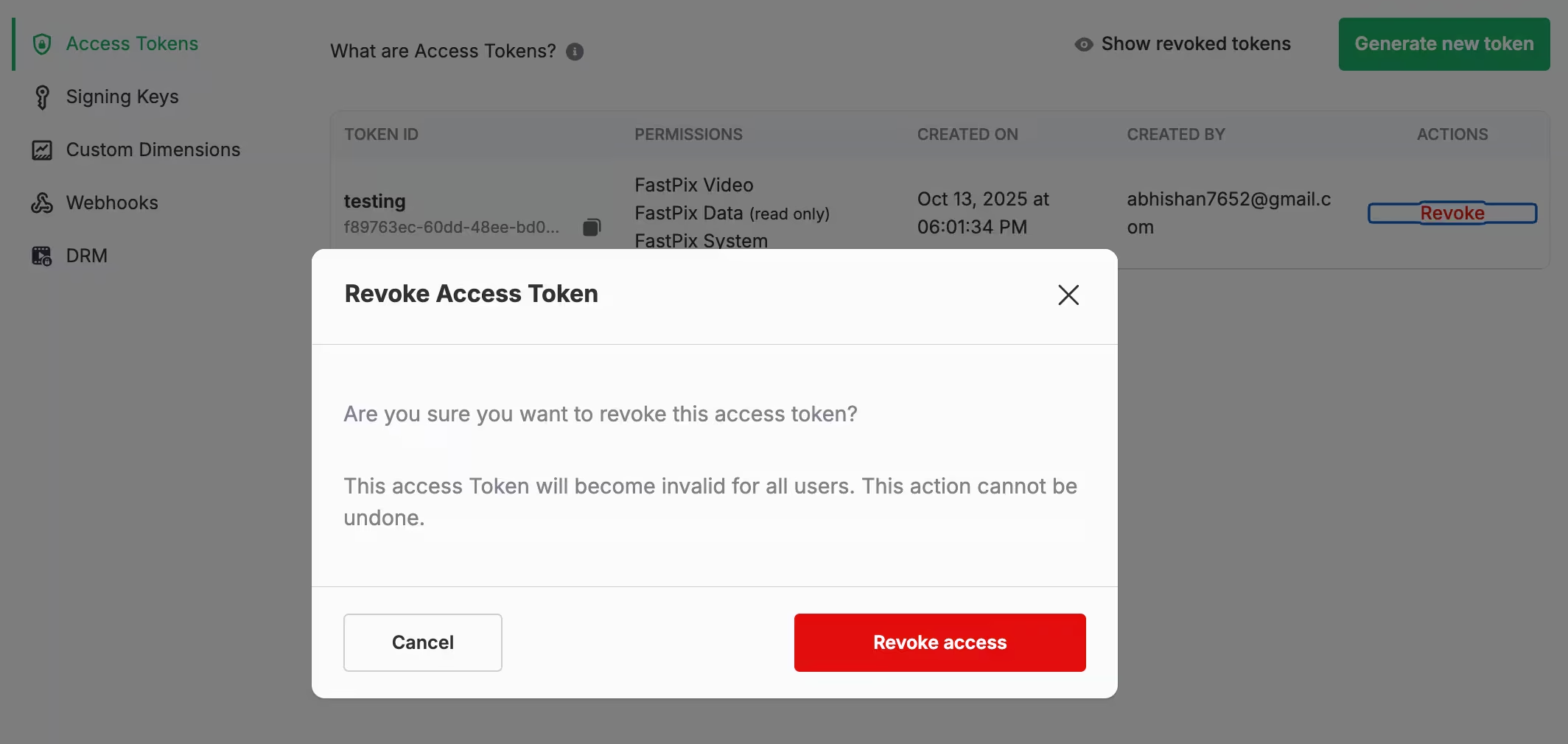
- Go to Settings > Access Tokens.
- Find the token you want to revoke.
- Click the Revoke next to the token.
- Confirm the action by clicking Revoke access.
NOTE:
Revoking a token immediately stops all API requests using those credentials. Make sure to update your applications before revoking tokens they depend on.
Understand user roles
FastPix supports two user roles:
| Role | Permissions |
|---|---|
| Admin | Full control over the organization, including access token management, billing and subscription settings, user management, and all account configurations. Admins can add or remove team members and modify organization-level settings. |
| Member | Can generate, view, manage, and revoke access tokens. Members have full access to API credential management but cannot modify billing, manage users, or change organization settings. |
While both roles can manage API credentials, only admins have access to administrative functions like billing, user invitations, and organization-wide settings.
Best practices
Follow these recommendations to keep your account secure:
- Use descriptive token names: Name tokens based on their purpose (for example, "Mobile App Production" or "CI/CD Pipeline").
- Rotate tokens regularly: Generate new tokens periodically and revoke old ones.
- Limit token permissions: Use read-only tokens whenever possible.
- Monitor token usage: Review your access tokens regularly and remove unused ones.
- Store secrets securely: Never expose Secret Keys in client-side code, public repositories, or logs.
Troubleshooting
Authentication fails with 401 error
If your API requests return a 401 Unauthorized error:
- Verify that you're using the correct Access Token ID and Secret Key.
- Check that the token hasn't been revoked.
- Ensure your token has the required permissions for the operation.
- Confirm that you're properly encoding the credentials in Base64.
Can't generate new tokens
If you can't create access tokens:
- Verify that your account has admin or member privileges.
- Check that you're signed in to the correct organization.
- Try refreshing your dashboard and clearing your browser cache.
What's next
Now that you have your API credentials, you can:
- Set up your workspace to organize your media assets
- Configure webhooks to receive event notifications
- Upload your first video to test the API
More information
- Read the complete FastPix documentation guides
- Join the FastPix community discussions
- Contact FastPix support
Updated about 1 month ago