
Stream videos in five minutes
Upload and play back your video files in your application using FastPix in five minutes or less.
The FastPix Video API uses a token key pair that consists of an Access Token ID and Secret Key for authentication. Generate a new Access Token in the settings of your FastPix account dashboard.
Videos stored in FastPix are called medias. To create your first video media, send a POST request to the /medias endpoint and set the input property to the URL of a video file that's accessible online.
As soon as you POST a video, FastPix begins downloading and processing the video. For shorter files, this often takes just a few seconds.
To play back a media, create a playback URL using the playback_id you received when you created the media.
Delete, update, and more media functionalities are available through the Video media API methods.
Get an API Access Token
The FastPix Video API uses a token key pair consisting of a Access token ID and Secret Key for authentication. If you haven’t already, generate a new Access Token in the Access Token settings of your FastPix account dashboard.
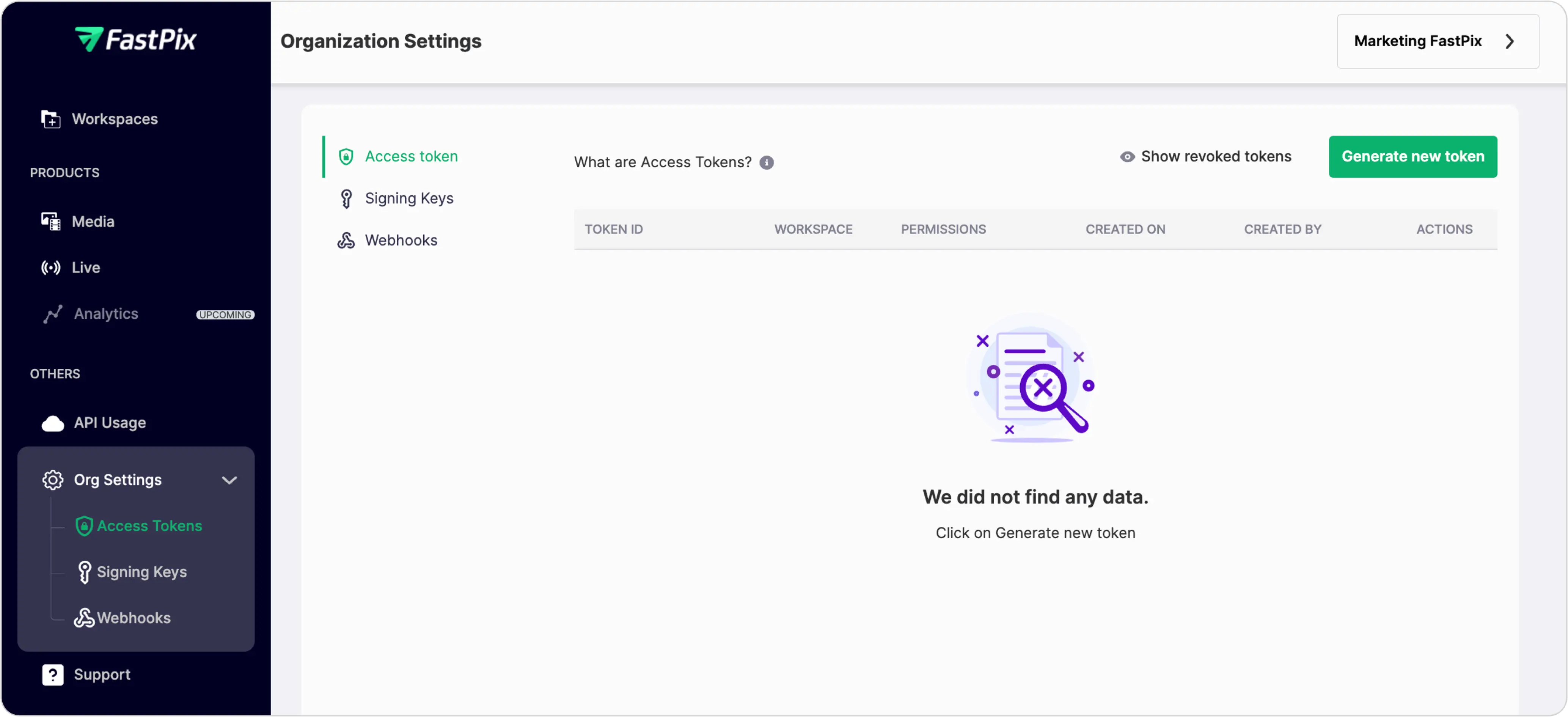
You'll be presented with a form to create your new Access Token.
-
Access Tokens belong to an Environment, a container for the various Access Tokens, Signing Keys, and assets that you'll come to add to FastPix. For this guide, you can keep the Production environment selected.
-
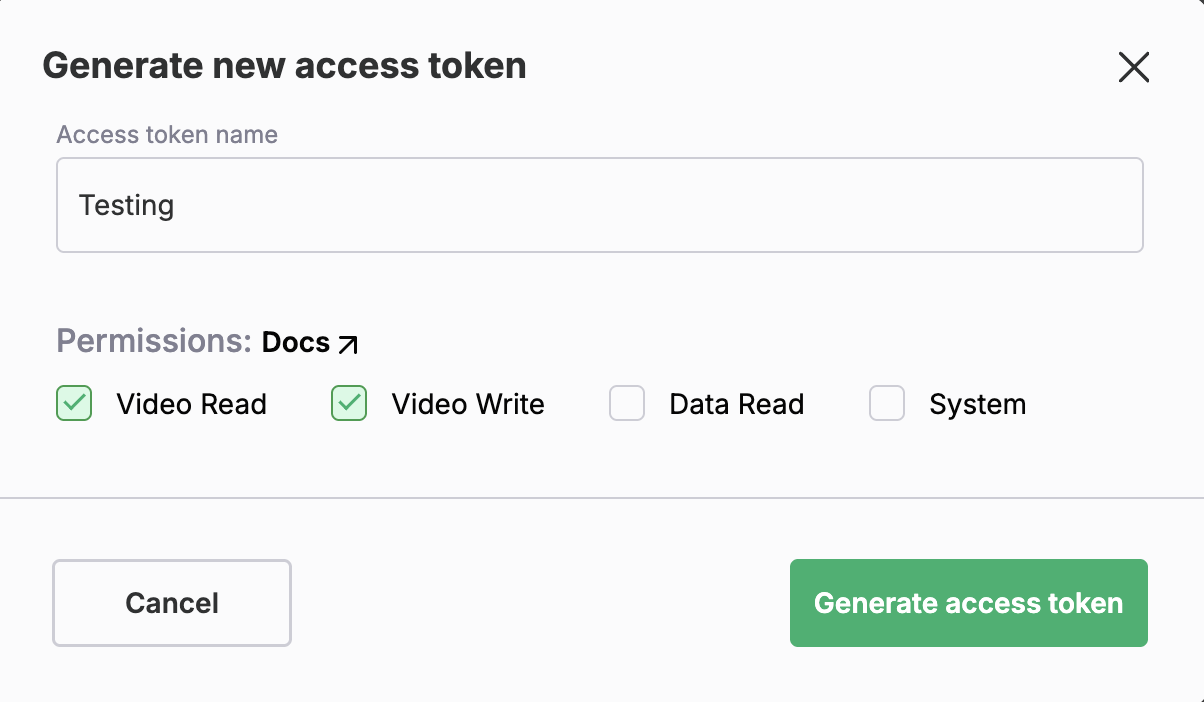
Access Tokens can have varying permissions to control what kinds of changes they have the ability to make. For this guide, your Access Token should have FastPix Video Read and Write permissions.
-
You can give your Access Token an internal-only name like "Onboarding" so you know where you've used it within your application.
Now, click the Generate token button.
You'll be presented with your new Access Token ID and Secret Key.
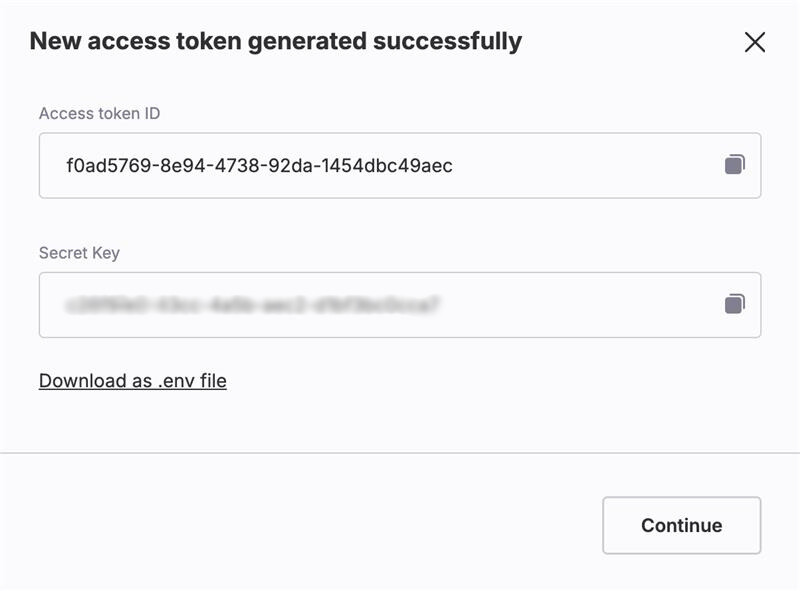
After obtaining your new Access Token ID and Secret Key, you are ready to upload your first video.
POST a video
Videos stored in FastPix are called media. To create your first media, you need to send a POST request to the /media endpoint and set the input value to the URL of a video file that's accessible online.
Here are a few demo videos you can use that are stored on common cloud storage services:
- Amazon S3: https://muxed.s3.amazonaws.com/leds.mp4
- Google Drive: https://drive.google.com/uc?id=13ODlJ-Dxrd7aJ7jy6lsz3bwyVW-ncb3v
- Dropbox: https://www.dropbox.com/scl/fi/l2sm1zyk6pydtosk3ovwo/get-started.mp4?rlkey=qjb34b0b7wgjbs5xj9vn4yevt\&dl=0
To start making API requests to FastPix, you might want to install one of our officially supported API SDKs. These are lightweight wrapper libraries that use your API credentials to make authenticated HTTP requests to the FastPix API.
go get github.com/FastPix/fastpix-go
# npm
npm install @fastpix/fastpix-node

# yarn
yarn add @fastpix/fastpix-node
# composer.json
{
    "require": {
        "fastpix/sdk": "*"
    }
}
gem 'fastpixapi', '~> 1.0.0'
For an example of how to make API Requests from your local environment, see the Make API Requests guide.
package main

import (
	"context"
	fastpix "github.com/FastPix/fastpix-go"
	"github.com/FastPix/fastpix-go/models/components"
	"log"
)

func main() {
	ctx := context.Background()

	s := fastpix.New(
		fastpix.WithSecurity(components.Security{
			Username: fastpix.Pointer("your-access-token"),
			Password: fastpix.Pointer("your-secret-key"),
		}),
	)

	res, err := s.InputVideo.CreateMedia(ctx, components.CreateMediaRequest{
		Inputs: []components.Input{
			components.CreateInputVideoInput(
				components.VideoInput{
					Type: "video",
					URL:  "https://static.fastpix.io/fp-sample-video",
				},
			),
		},
		Metadata: map[string]string{
			"key1": "value1",
		},
		AccessPolicy: components.CreateMediaRequestAccessPolicyPublic,
	})
	if err != nil {
		log.Fatal(err)
	}
	if res.CreateMediaSuccessResponse != nil {
		// handle response
	}
}
import { Fastpix } from "@fastpix/fastpix-node";

const fastpix = new Fastpix({
  security: {
    username: "your-access-token",
    password: "your-secret-key",
  },
});

async function run() {
  const result = await fastpix.inputVideo.createMedia({
    inputs: [
      {
        type: "video",
        url: "https://static.fastpix.io/sample.mp4",
      },
    ],
    metadata: {
      "key1": "value1",
    },
    accessPolicy: "public",
  });

    // handle response
    console.log(result);

}

run();
declare(strict_types=1);

require 'vendor/autoload.php';

use FastPix\Sdk;
use FastPix\Sdk\Models\Components;

$sdk = SDK::builder()
    ->setSecurity(
        new Components\Security(
            username: 'your-access-token',
            password: 'your-secret-key',
        )
    )
    ->build();

$request = new Components\CreateMediaRequest(
    inputs: [
        new Components\VideoInput(
            type: 'video',
            url: 'https://static.fastpix.io/sample.mp4',
        ),
    ],
    metadata: [
        'key1' => 'value1',
    ],
    accessPolicy: Components\CreateMediaRequestAccessPolicy::Public,
);

$response = $sdk->inputVideo->createMedia(
    request: $request
);

if ($response->createMediaSuccessResponse !== null) {
    // handle response
}
require 'fastpixapi'

Models = ::FastpixApiSDK::Models
s = ::FastpixApiSDK::Fastpix.new(
      security: Models::Components::Security.new(
        username: 'your-access-token',
        password: 'your-secret-key',
      ),
    )

req = Models::Components::CreateMediaRequest.new(
  inputs: [
    Models::Components::VideoInput.new(
      type: 'video',
      url: 'https://static.fastpix.io/sample.mp4',
    ),
  ],
  metadata: {
    "key1": 'value1',
  },
  access_policy: Models::Components::CreateMediaRequestAccessPolicy::PUBLIC,
)

res = s.input_video.create_media(request: req)

unless res.create_media_success_response.nil?
  # handle response
end
The response will include an Media ID and a Playback ID.
- Media IDs are used to manage assets using
api.fastpix.com(for example to read or delete an asset). - Playback IDs are used to stream an asset to a video player through
stream.fastpix.com. You can add multiple playback IDs to an asset to create playback URLs with different viewing permissions, and you can delete playback IDs to remove access without deleting the asset.
{
  "success": true,
  "data": {
    "id": "4ee2ec6a-7426-4501-8051-277ea1eb4014",
    "trial": true,
    "status": "Created",
    "createdAt": "2025-10-30T09:46:32.098964Z",
    "updatedAt": "2025-10-30T09:46:32.098967Z",
    "playbackIds": [
      {
        "id": "fe142e1f-c9c6-4098-b350-1bdf97b9b332",
        "accessPolicy": "public",
        "accessRestrictions": {
          "domains": {
            "defaultPolicy": "allow",
            "allow": [],
            "deny": []
          },
          "userAgents": {
            "defaultPolicy": "allow",
            "allow": [],
            "deny": []
          }
        }
      }
    ],
    "sourceAccess": false,
    "maxResolution": "1080p",
    "inputs": [
      {
        "type": "video",
        "url": "https://static.fastpix.io/fp-sample-video.mp4"
      }
    ],
    "subtitles": {},
    "optimizeAudio": false
  }
}
FastPix does not store the original file in its exact form, so if your original quality files are important to you, don't delete them after submitting them to FastPix.
Wait for ready
readyAs soon as you make the POST request, FastPix begins downloading and processing the video. For shorter files, this often takes just a few seconds. Very large files over poor connections may take a few minutes (or longer).
When the video is ready for playback, the media status changes to ready. You should wait until the asset status is ready before you attempt to play the video.
The best way to be notified of media status updates is through webhooks. FastPix can send a webhook notification as soon as the asset is ready. See the webhooks guide for details.
If you can't use webhooks for some reason, you can manually poll the media API to see asset status. Note that this only works at low volume. Try this example:
Try an example request
curl --request GET \
     --url https://api.fastpix.io/v1/on-demand/mediaId \
     --header 'accept: application/json'
package main

import (
	"fmt"
	"net/http"
	"io"
)

func main() {

	url := "https://api.fastpix.io/v1/on-demand/mediaId"

	req, _ := http.NewRequest("GET", url, nil)

	req.Header.Add("accept", "application/json")

	res, _ := http.DefaultClient.Do(req)

	defer res.Body.Close()
	body, _ := io.ReadAll(res.Body)

	fmt.Println(string(body))

}
import fastpixPublic from '@api/fastpix-public';

fastpixPublic.getMedia({mediaId: 'mediaId'})
  .then(({ data }) => console.log(data))
  .catch(err => console.error(err));
<?php
require_once('vendor/autoload.php');

$client = new \GuzzleHttp\Client();

$response = $client->request('GET', 'https://api.fastpix.io/v1/on-demand/mediaId', [
  'headers' => [
    'accept' => 'application/json',
  ],
]);

echo $response->getBody();
require 'uri'
require 'net/http'

url = URI("https://api.fastpix.io/v1/on-demand/mediaId")

http = Net::HTTP.new(url.host, url.port)
http.use_ssl = true

request = Net::HTTP::Get.new(url)
request["accept"] = 'application/json'

response = http.request(request)
puts response.read_body
Do not poll this API more than once per second.
Watch your Video
To play back a media, create a playback URL using the PLAYBACK_ID you received when you created the media.
https://stream.fastpix.io/{PLAYBACK_ID}.m3u8Preview in a player
package com.examples.app

import io.fastpix.player.*
import androidx.media3.exoplayer.ExoPlayer
import androidx.media3.ui.PlayerView

class CustomizedPlayerActivity : AppCompatActivity() {
    private val playerView get() = binding.player
    private var player: MediaFastPixPlayer? = null
    private var playWhenReady = true

    override fun onCreate(savedInstanceState: Bundle?) {
        super.onCreate(savedInstanceState)
        binding = ActivityCustomizedPlayerBinding.inflate(layoutInflater)
        setContentView(binding.root)
    }

    override fun onStart() {
        super.onStart()
        startPlayback()
    }

    private fun startPlayback() {
        val mediaItem = FastPixUrlGenerator.createCustomPlaybackUri(
            playbackId = "YOUR_PLAYBACK_ID"//playbackId is mandatory input
        )
        if (player != null ) {
            player!!.playWhenReady = false
        }
        val item = mediaItem.build()
        if (item != player?.currentMediaItem) {
            beginPlayback(item)
        }
    }

    private fun beginPlayback(mediaItem: MediaItem) {

        val player = createPlayer(this)
        player.setMediaItem(mediaItem)
        player.prepare()
        player.playWhenReady = playWhenReady
        player.seekTo(playbackPosition)
        this.playerView.player = player
        this.player = player
    }

    private fun createPlayer(context: Context): MediaFastPixPlayer {

        val mediaFastPixPlayer: MediaFastPixPlayer = MediaFastPixPlayer.Builder(context).build()

        return mediaFastPixPlayer
    }

}
<iframe
  src=" https://play.fastpix.io/?playbackId={PLAYBACK_ID}&autoplay=true&muted=true&loop=true&hide-controls=true&enableVideoClick=true&aspect-ratio=21/9"
  style="aspect-ratio: 16/9; width: 100%; border: 0;"
  allow="accelerometer; gyroscope; autoplay; encrypted-media; picture-in-picture;"
  allowfullscreen="true"
></iframe>
<script src="https://cdn.jsdelivr.net/npm/@fastpix/fp-player@latestdist/player.js"></script>

<fastpix-player
    playback-id="{PLAYBACK_ID}"
    metadata-workspace-key="your-metadata-key"
  metadata-video-title="video title"
  metadata-viewer-user-id="user id"
  metadata-video-id="video-id"
</fastpix-player>
import UIKit
import FastPixPlayerSDK
import AVKit

class VideoPlayerViewController: UIViewController {

    // Playback ID and Token for streaming (to be set dynamically)
    var playbackID = "FASTPIX_PLAYBACKID"
    var playbackToken = "FASTPIX_TOKEN"

    // Lazy initialization of AVPlayerViewController
    lazy var playerViewController = AVPlayerViewController()

    // MARK: - View Lifecycle

    override func viewDidLoad() {
        super.viewDidLoad()

        // Prepare and attach the AVPlayerViewController to the view
        prepareAvPlayerController()

        // Start playback
        playerViewController.player?.play()
    }

    // MARK: - AVPlayer Setup

    /// Sets up the AVPlayerViewController and attaches it to the view hierarchy
    func prepareAvPlayerController() {
        // Add playerViewController as a child
        playerViewController.willMove(toParent: self)
        addChild(playerViewController)
        view.addSubview(playerViewController.view)
        playerViewController.didMove(toParent: self)

        // Disable autoresizing mask constraints
        playerViewController.view.translatesAutoresizingMaskIntoConstraints = false

        // Constrain player view to safe area
        NSLayoutConstraint.activate([
            playerViewController.view.leadingAnchor.constraint(equalTo: view.safeAreaLayoutGuide.leadingAnchor),
            playerViewController.view.trailingAnchor.constraint(equalTo: view.safeAreaLayoutGuide.trailingAnchor),
            playerViewController.view.topAnchor.constraint(equalTo: view.safeAreaLayoutGuide.topAnchor),
            playerViewController.view.bottomAnchor.constraint(equalTo: view.safeAreaLayoutGuide.bottomAnchor)
        ])
    }
}
See the playback guide for more information about how to integrate with a video player.
After you have everything working integrate FastPix Data with your player for monitoring playback performance.
Manage your FastPix medias
After you have medias created in your FastPix environment, you may find some of these other endpoints handy:
- Create media from url
API - List media
API - Get media by ID
API - Delete media by ID
API - Get info of media inputs
API - Create media playback ID
API - Retrieve media playback ID
API - Delete media playback ID
API - Update MP4 support of media
API - Update media track
API - Delete a media track
API
More Video methods and descriptions are available at the API Docs
Next Steps
Set up your iOS application, Android application or web application to start playing your FastPix medias
Now that you have FastPix medias, build rich experiences into your application by previewing your videos with Thumbnails and Storyboards
Add the FastPix Data SDK to your player and start collecting playback performance metrics.
Updated 3 months ago